

Cutting power to a home router once a week has become a common piece of advice, and it does have a modest technical basis: a restart clears temporary memory and re-establishes the link between the household network and the internet provider. What it does not do is raise the bandwidth on your contract or cure every cause of a slow connection. Manufacturers and service providers generally present rebooting as a troubleshooting step rather than a fixed weekly ritual.
- Key Point: A restart can resolve minor faults such as Wi-Fi drops, intermittent outages or unexplained slowdowns by forcing the device to relaunch its processes.
- Key Point: Google lists rebooting the modem or router among the actions that may fix some internet and wireless problems, and says restarting Nest Wifi or Google Wifi hardware does not erase its configuration.
- Key Point: Rebooting is not the same as a factory reset, which wipes custom settings including the network name and password.
- Key Point: When the modem and router are separate units, the order in which they are power-cycled can matter.
Why a restart sometimes helps
The router sits between every connected device in a home and the provider’s network, and after long stretches of continuous operation it can develop transient errors or struggle to hold stable links. Switching it off and on again forces those processes to start fresh, which is often enough to clear a passing fault.
Typical symptoms that justify a reboot include a wireless network that shows as active while devices cannot reach the internet, connections that drop intermittently, or speeds that fall for no obvious reason. The procedure can also restore communication between the modem and the provider.
Google’s support guidance places the modem or router restart among the steps that can resolve certain internet and wireless connectivity issues. For its Nest Wifi and Google Wifi devices, the company states that a restart leaves the existing setup intact.
What rebooting cannot deliver
Restarting hardware does not increase the speed tier a customer pays for, and it will not address every source of a sluggish connection. Signal quality can be degraded by distance from the router, walls, interference from other appliances, the number of connected devices or a fault on the provider’s side. Google’s advice includes checking which equipment is consuming large amounts of bandwidth and ruling out problems with the modem or the service itself.
Shutting the router down every night is a separate question, and it carries trade-offs. Overnight power-offs disconnect cameras, alarms, internet phones and other devices that rely on the network, and they can interrupt scheduled downloads or updates. If the equipment is working normally, there is no need to unplug it daily in pursuit of better performance.
Restart versus factory reset, and the right sequence
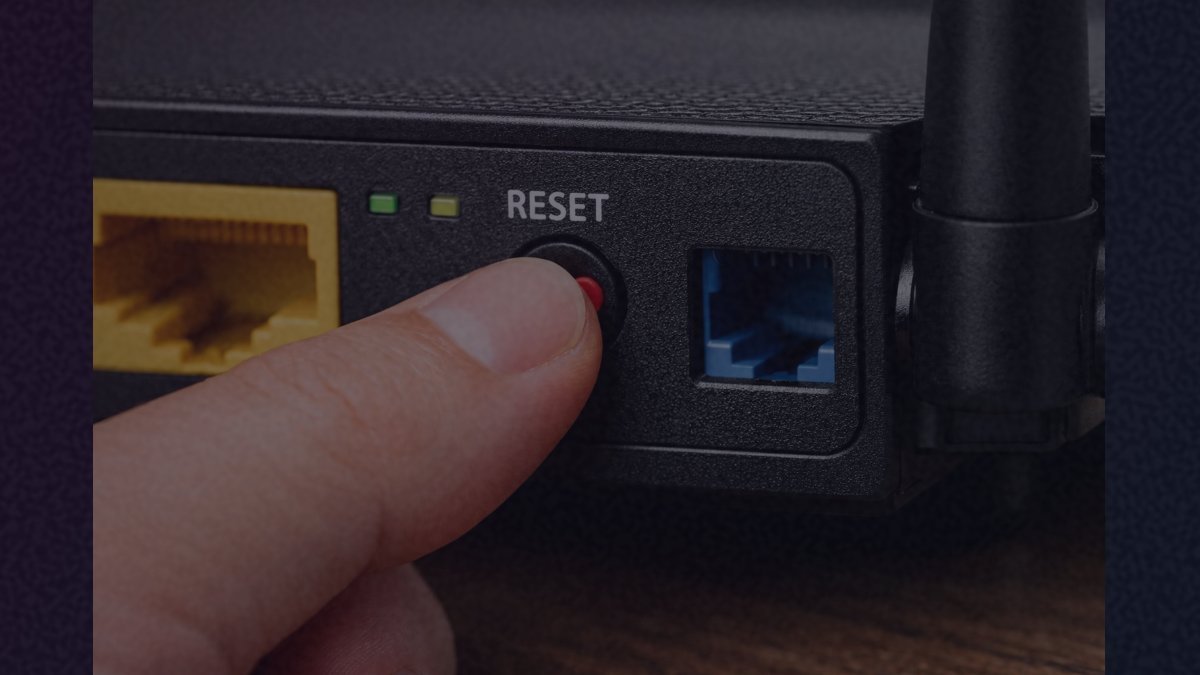
These two operations are frequently confused. A restart usually means unplugging the power cable, waiting a few seconds and plugging it back in, then waiting for the indicator lights to confirm that connectivity has returned; exact steps vary by brand and model. A factory reset, by contrast, erases personalized settings such as the network name and password. It is normally triggered by a button marked “Reset,” which is why holding that button down is a bad idea when all you want is a reboot. Google warns that this option removes the configuration and requires the network to be set up again.
Households with a separate modem and router may need to bring them back in a particular order. Google recommends unplugging the modem, waiting roughly two minutes and reconnecting it; once the provider’s signal returns, the router’s connection can be checked. Timings and steps differ depending on the equipment and the service plan.
A periodic restart is a reasonable low-effort maintenance habit for some setups, but recurring failures deserve a closer look. If the connection breaks again shortly after each reboot, the next steps are to review the configuration, update the firmware according to the manufacturer’s instructions or contact the provider. Rebooting is a practical first move, not a substitute for keeping the router current, using a strong password or investigating persistent faults.